CashCatalyst User Guide

Complete guide to mastering cash flow management with AI-powered insights

Getting Started

Account Setup

1. Create Your Organization

  • Visit the registration page
  • Choose your organization name (this becomes your workspace)
  • Select your initial subscription plan
  • Verify your email address

2. Initial Configuration

  • Set your initial cash balance
  • Configure your preferred date format
  • Set up basic transaction categories
  • Invite team members (Pro/Business plans)

First Steps

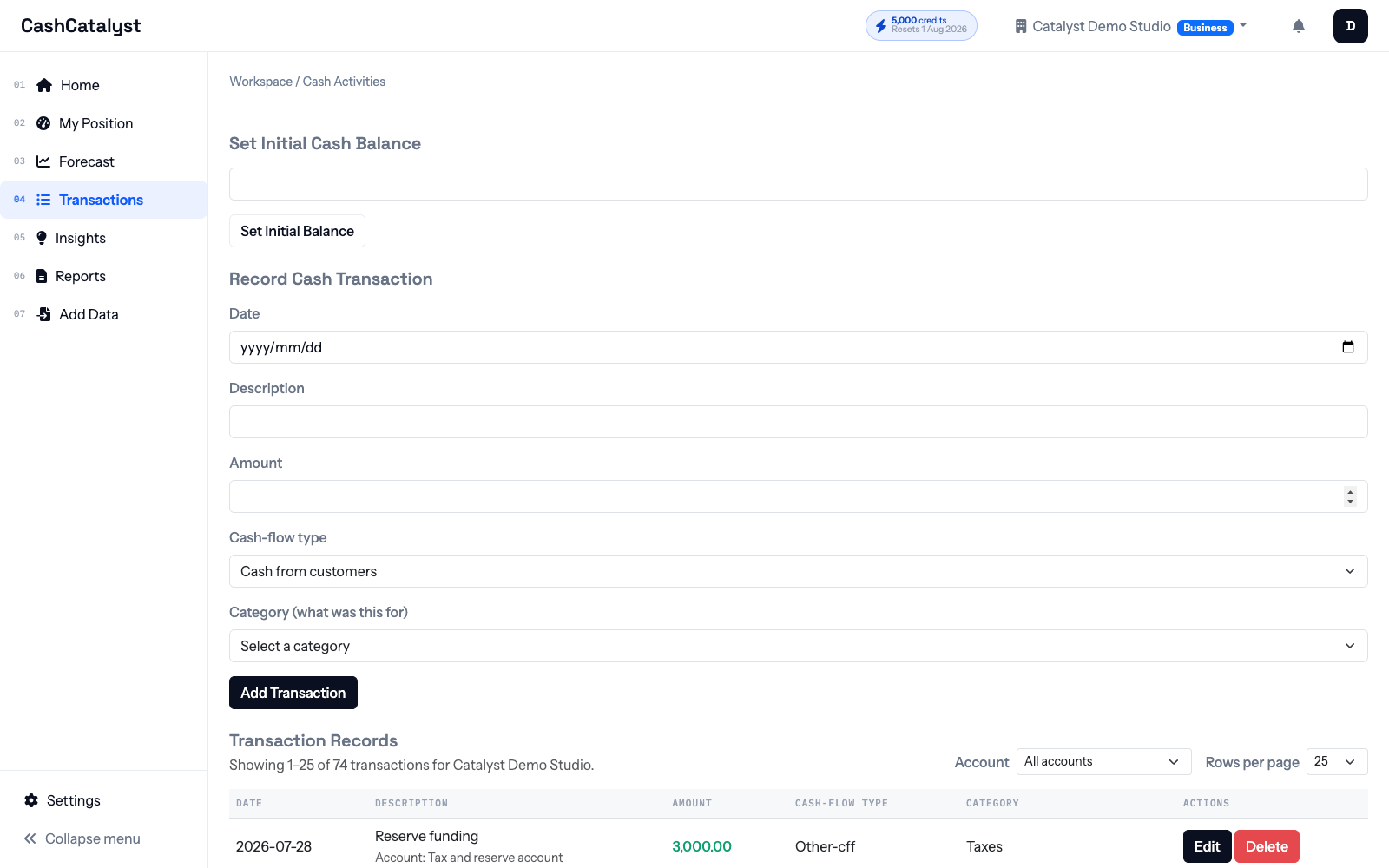
1. Record Your Initial Balance

  • Navigate to Cash Activities
  • Use "Set Initial Cash Balance" form
  • Enter your starting cash position

2. Add Your First Transactions

  • Use manual entry for immediate transactions
  • Upload historical data via CSV for bulk import
  • Categorize transactions properly for accurate analysis
Pro Tip: Start with at least 3 months of historical data for better AI analysis results.

Financial Concepts

Understanding Cash Flow Categories

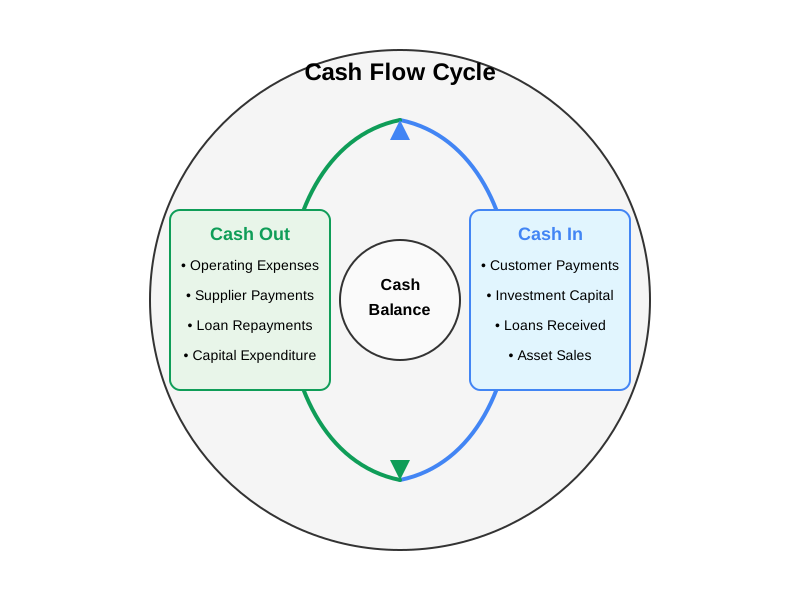
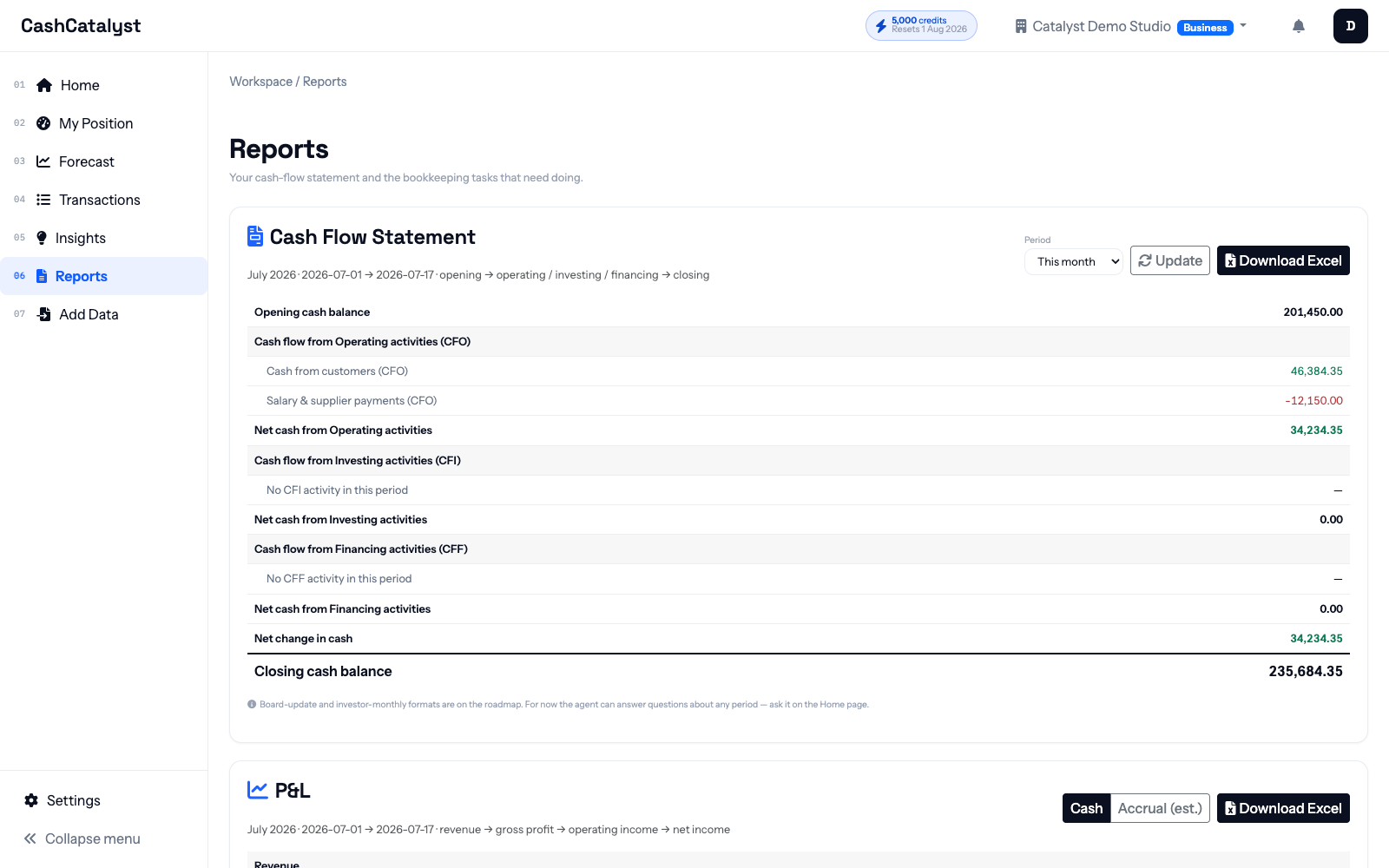
What it is: Money generated from your core business activities

Examples:

  • Cash from customers (+): Sales revenue, customer payments
  • Salary & supplier payments (-): Employee wages, vendor payments
  • Interest paid (-): Loan interest, credit card interest
  • Income taxes (-): Tax payments to authorities
  • Other operating cashflow (+/-): Insurance, rent, utilities

Why it matters: Shows if your business operations are generating positive cash flow

What it is: Cash spent on or received from investments and long-term assets

Examples:

  • Purchase of property & equipment (-): Office equipment, vehicles, machinery
  • Sale of property & equipment (+): Asset disposals
  • Purchase of investments (-): Stocks, bonds, other securities
  • Sale of investments (+): Investment liquidations
  • Other investing cashflow (+/-): Loans to others, acquisition costs

Why it matters: Indicates how you're investing in business growth

What it is: Cash movements between your business and investors/lenders

Examples:

  • Issuing shares (+): Equity investments, new partners
  • Borrowings (+): Loans, lines of credit
  • Repayment of borrowings (-): Loan principal payments
  • Dividends paid (-): Distributions to owners
  • Other financing cashflow (+/-): Debt restructuring, refinancing

Why it matters: Shows how you're funding business operations and growth

Key Financial Metrics

Metric Definition Benchmarks
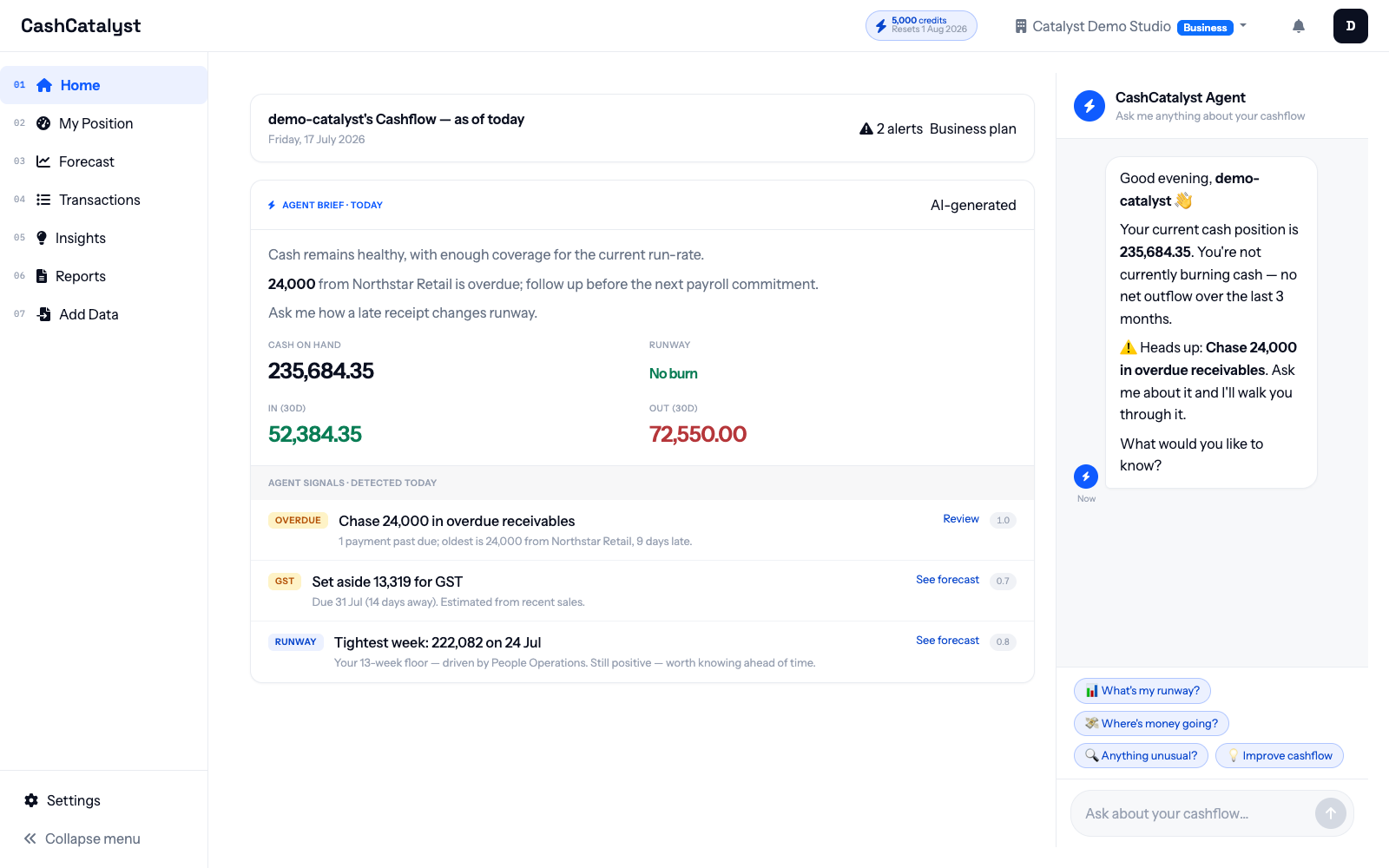
Burn Rate Monthly rate of cash consumption Varies by industry and growth stage
Cash Runway How long cash will last at current burn rate ๐Ÿ”ด Under 3 months: Critical
๐ŸŸก 3-6 months: Concerning
๐ŸŸข 6+ months: Healthy
Current Ratio Current Assets รท Current Liabilities Healthy ratio: > 1.5
Quick Ratio (Current Assets - Inventory) รท Current Liabilities Healthy ratio: > 1.0

Core Features

Transaction Management

Manual Entry

  1. Navigate to Cash Activities
  2. Fill out the transaction form:
    • Date: When the transaction occurred
    • Description: Clear, searchable description
    • Amount: Use positive for inflows, negative for outflows
    • Type: Select appropriate CFO/CFI/CFF category
  3. Click Add Transaction

Bulk Upload via CSV

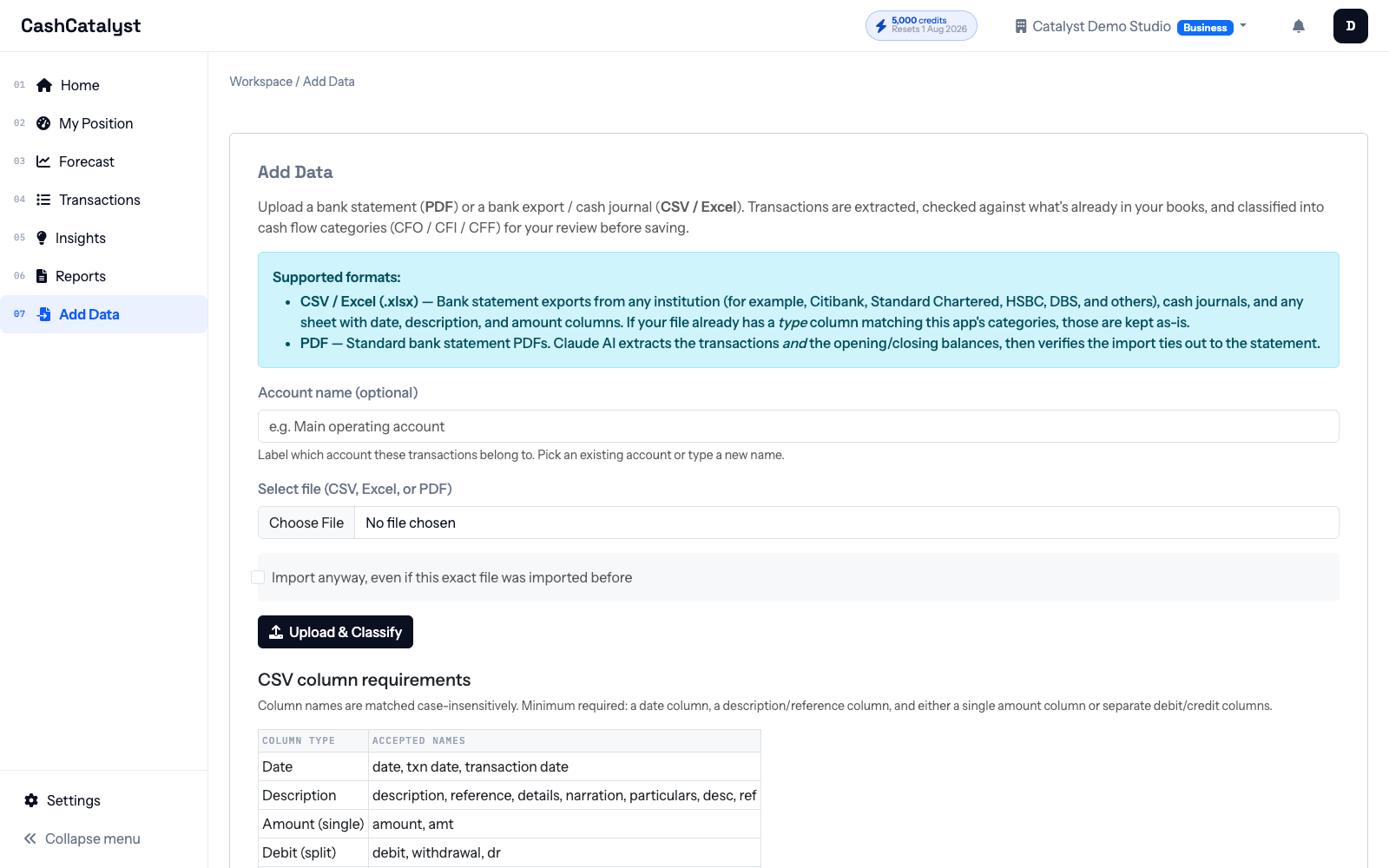
  1. Go to Upload section
  2. Download the CSV template
  3. Fill in your transactions following the format:
Date,Description,Amount,Type
2024-01-15,Customer payment,5000,Cash-customer
2024-01-16,Office rent,-2000,Other-cfo
  1. Upload your file
  2. Review the preview and make any corrections
  3. Confirm to import all transactions

Transaction Categories

Operating Activities (CFO):
  • Cash-customer: Revenue from customers
  • Salary-suppliers: Employee and vendor payments
  • Interest-paid: Interest expenses
  • Income-tax: Tax payments
  • Other-cfo: Miscellaneous operating activities
Investing Activities (CFI):
  • Buy-property-equipments: Asset purchases
  • Sell-property-equipments: Asset sales
  • Buy-investment: Securities purchases
  • Sell-investment: Securities sales
  • Other-cfi: Other investing activities
Financing Activities (CFF):
  • Issue-shares: Equity financing
  • borrowings: Debt financing
  • Repay-borrowings: Debt repayments
  • Pay-dividends: Distributions
  • Other-cff: Other financing activities

Cash Overview Dashboard

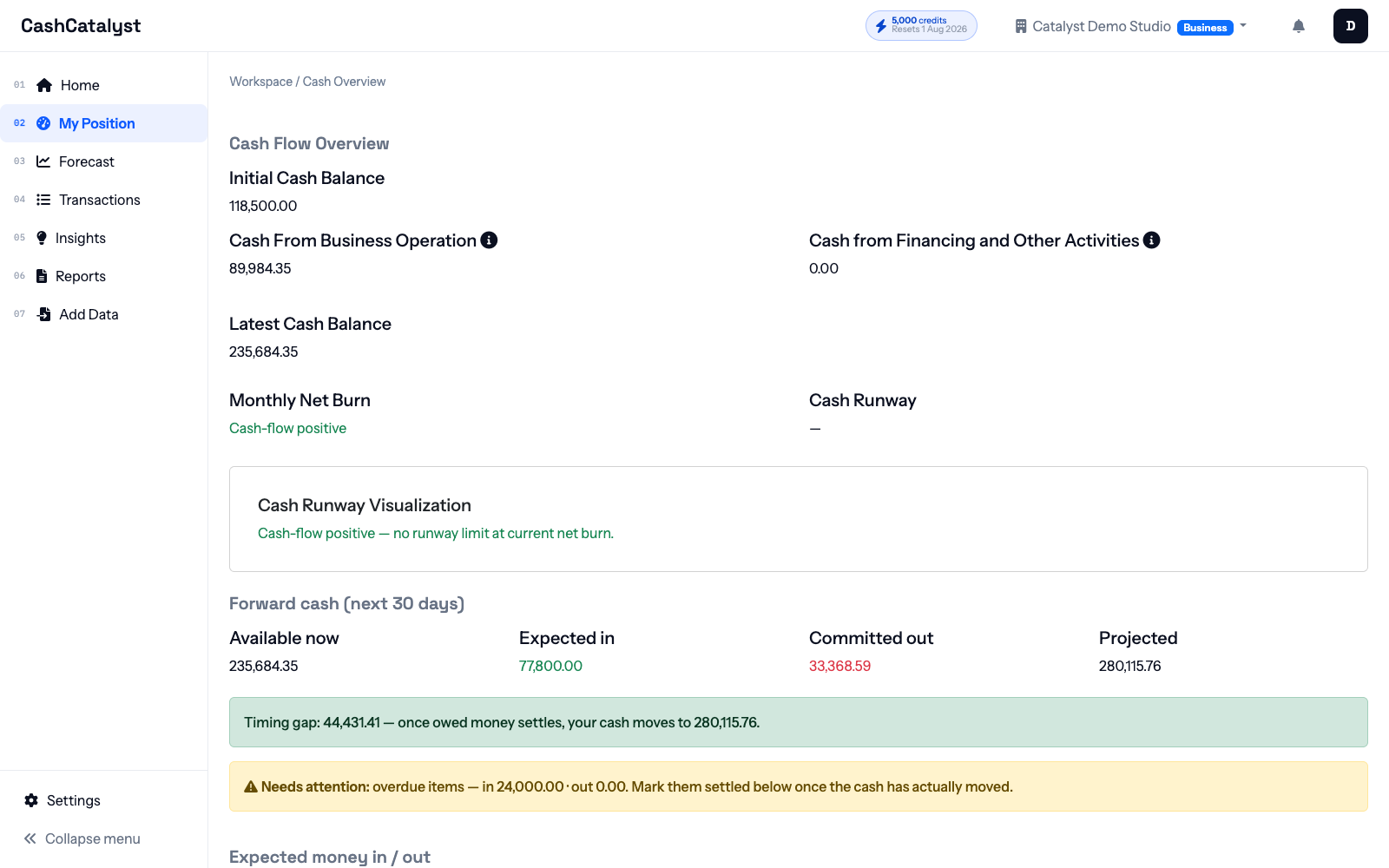
Balance Tracking

  • Initial Cash Balance: Your starting position
  • Cash from Operations: Net operating cash flow
  • Cash from Financing and Other: Net investing + financing cash flow
  • Latest Cash Balance: Current cash position

Interactive Charts

  1. Monthly Cash Income: Track revenue patterns
  2. Monthly Cash Expenses: Monitor spending trends
  3. Monthly Balance Trend: See cash position over time
  4. Cash-out by Categories: Understand expense distribution

Data Export and Reporting

  • CSV Export: Raw transaction data for analysis
  • Excel Export: Formatted spreadsheet with summaries
  • Cash Flow Statement: Professional financial statement

AI Analysis

Available on Pro ($19/month) and Business ($49/month) plans

Financial Intelligence Dashboard

Executive Summary

  • Data Points: Number of transactions analyzed
  • Analysis Ready: Whether sufficient data exists for analysis
  • Data Quality: Confidence level in analysis results

Interactive Query System

Ask questions about your financial data in natural language:

Example Queries:
  • "What are the top expense categories by amount?"
  • "Show revenue trends over the last 6 months"
  • "Identify cash flow patterns and seasonality"
  • "Calculate burn rate and runway projections"
  • "Compare this quarter's performance to last quarter"

Analysis Modules

1. Comprehensive Financial Analysis
Processing Time: 30-45 seconds
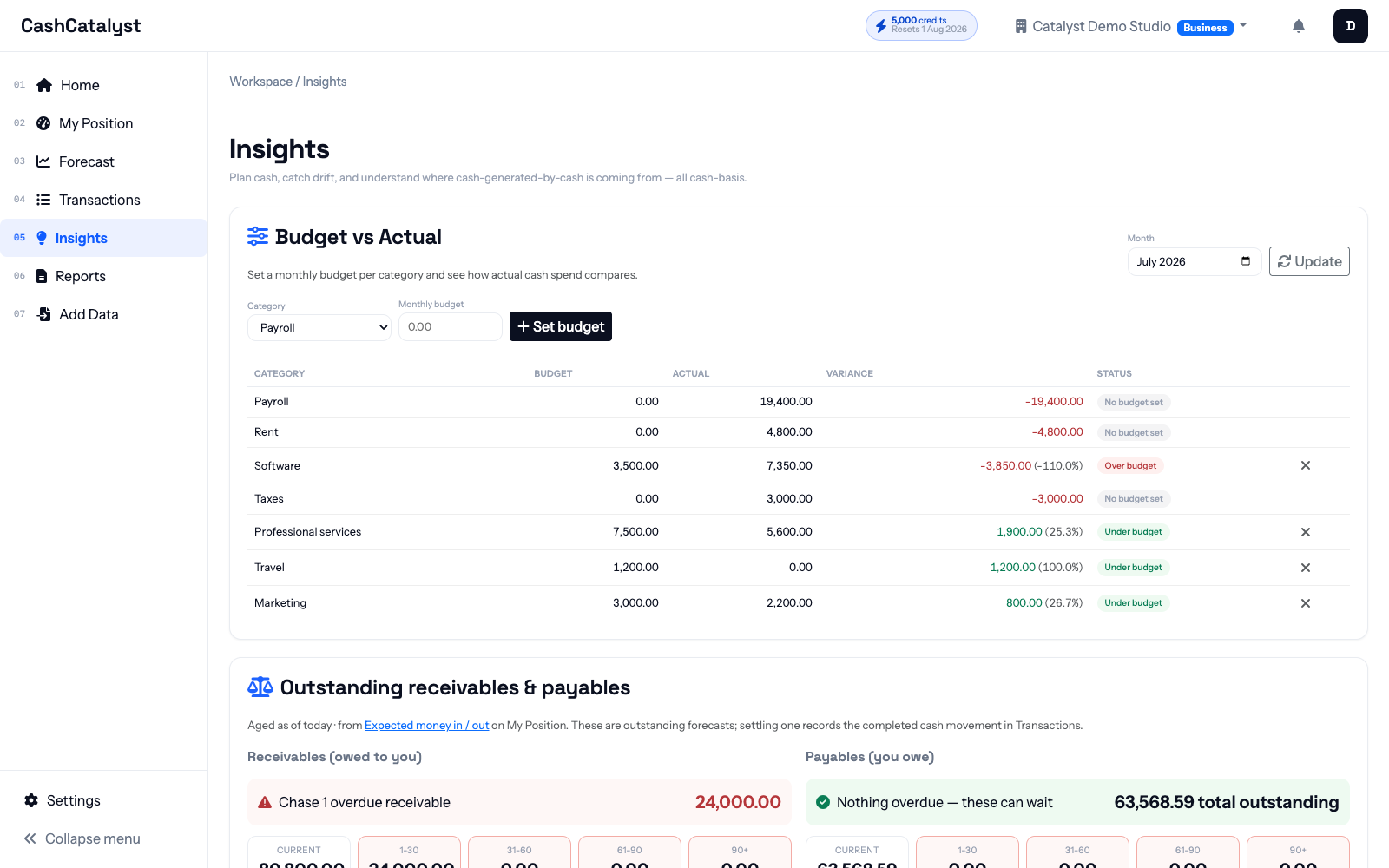
  • Financial performance metrics
  • Cash flow trend analysis
  • Expense categorization and optimization
  • Strategic recommendations
  • Risk assessment
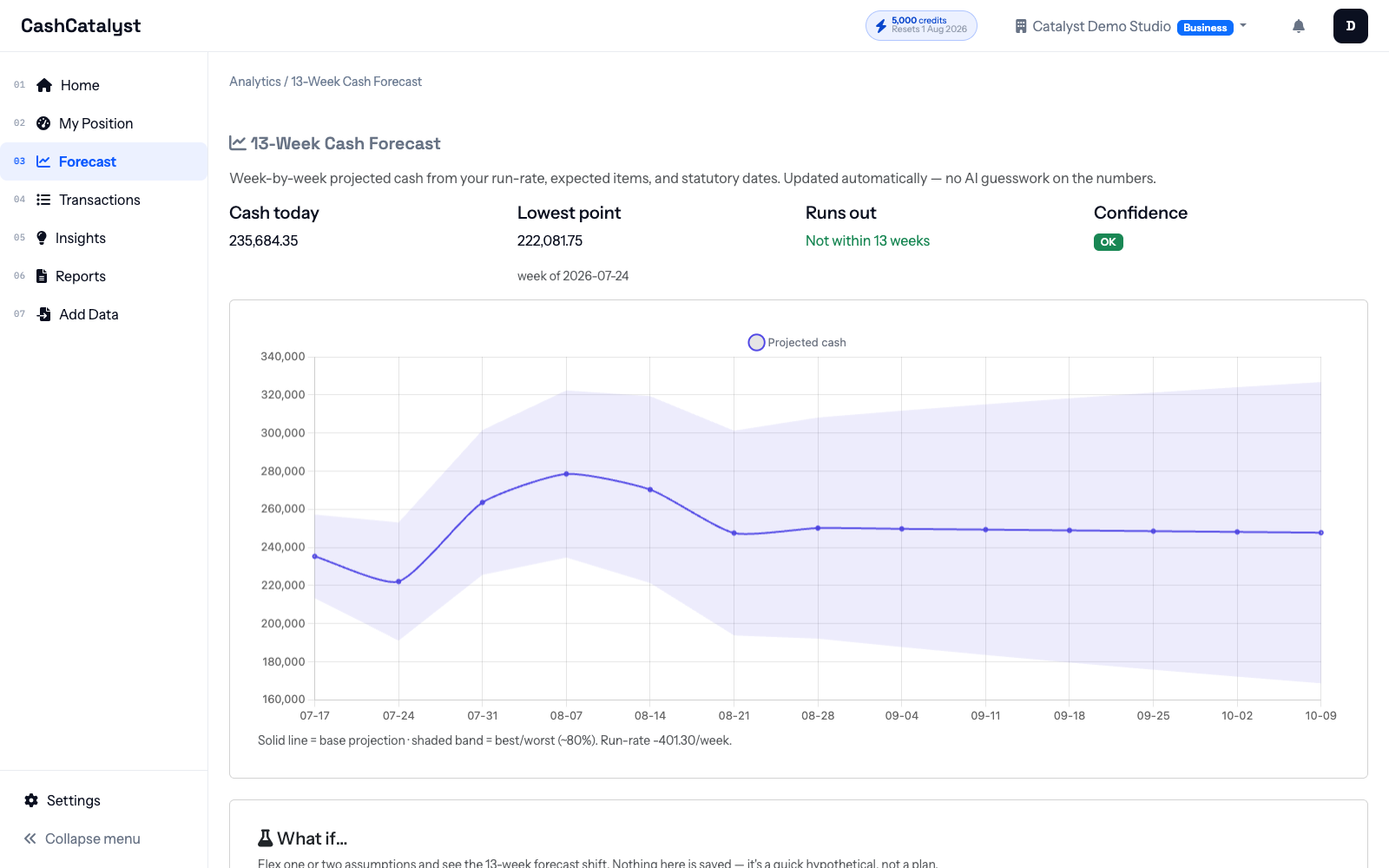
2. Cash Flow Forecasting
Processing Time: 45-60 seconds
  • 30/60/90-day projections
  • Scenario-based modeling
  • Seasonal adjustment factors
  • Confidence intervals
  • Risk-adjusted forecasts
3. Pattern Recognition
Processing Time: 35-50 seconds
  • Cyclical pattern detection
  • Anomaly identification
  • Correlation analysis
  • Behavioral insights
  • Trend identification
4. Risk Assessment
Processing Time: 40-55 seconds
  • Volatility and variance analysis
  • Liquidity risk assessment
  • Stress testing scenarios
  • Risk mitigation strategies
  • Early warning indicators

How to Use AI Analysis

  1. Navigate to AI Analysis from the main menu
  2. Check Data Requirements: Ensure you have at least 5 transactions
  3. Choose Analysis Type: Select from the four modules
  4. Wait for Processing: Analysis typically takes 20-45 seconds
  5. Review Results: AI provides detailed insights and recommendations
  6. Export or Share: Save results for future reference
Note: AI Analysis requires at least 5 transactions to provide meaningful insights. More data leads to more accurate forecasts.

Team Management

Available on Pro (up to 3 users) and Business (unlimited users) plans

User Roles

Role Permissions
Admin
  • Full access to all features
  • Can invite/remove team members
  • Manage subscription and billing
  • Access to organization settings
Member
  • Can add and edit transactions
  • View all reports and analysis
  • Cannot manage team or billing
  • Cannot change organization settings

Inviting Team Members

  1. Navigate to Team Management (Admin only)
  2. Click "Invite Member"
  3. Enter email address of new team member
  4. Select role (Admin or Member)
  5. Send invitation - they'll receive an email with setup instructions

Best Practices

  • Principle of Least Privilege: Give users minimum access needed
  • Regular Review: Periodically review team member access
  • Secure Invitations: Only invite users with business email addresses
  • Role Documentation: Clearly communicate roles and responsibilities

Subscription Plans

Plan Comparison

Free

$0/mo

  • 1 user account
  • 10 transactions/month
  • Basic cash flow tracking
  • CSV/Excel export
  • AI analysis features
  • Team collaboration
Pro
Popular

$19/mo

  • Up to 3 team members
  • 50 transactions/month
  • AI-powered financial analysis
  • Advanced forecasting
  • Team collaboration
  • Priority email support
Business

$49/mo

  • Unlimited team members
  • Unlimited transactions
  • All AI analysis features
  • Invoice OCR scanning
  • Priority phone support
  • Dedicated account manager

Upgrading Your Plan

  1. Go to Subscription Management
  2. Select new plan
  3. Enter payment information (for paid plans)
  4. Confirm upgrade
  5. Access new features immediately

Billing and Payment

  • Payment Methods: Credit cards (Visa, MasterCard, American Express)
  • Billing Cycle: Monthly billing on signup date
  • Upgrades: Prorated charges for mid-cycle upgrades
  • No cancellation fees

Troubleshooting

Common Issues

Charts Not Loading

Symptoms: Blank chart areas, loading spinners

Solutions:

  1. Check browser compatibility (Chrome, Firefox, Safari, Edge)
  2. Clear browser cache and cookies
  3. Disable browser extensions temporarily
  4. Refresh the page
  5. Ensure JavaScript is enabled

Upload Errors

Symptoms: CSV upload fails or shows format errors

Solutions:

  1. Verify CSV format matches the template exactly
  2. Check date format: Use YYYY-MM-DD format
  3. Validate amounts: Use decimal numbers, negative for expenses
  4. File size limit: Maximum 5MB file size
  5. Special characters: Avoid special characters in descriptions

AI Analysis Not Working

Symptoms: Analysis fails to generate or shows errors

Solutions:

  1. Check subscription plan: AI requires Pro or Business plan
  2. Verify data quantity: Need at least 5 transactions
  3. Wait and retry: Server may be busy, try again in 5 minutes
  4. Check internet connection: Stable connection required
  5. Contact support: If problem persists

Error Messages

Error Meaning Solution
"Transaction limit reached" Monthly limit exceeded Upgrade plan or wait for next billing cycle
"AI Analysis Unavailable" Server or plan issue Check subscription and retry
"Invalid file format" Upload format incorrect Use provided CSV template
"Network error" Connection issue Check internet and retry

Getting Help

Contacting Support
  • Email: [email protected]
  • Response Times:
    • Free plan: 48-72 hours
    • Pro plan: 24 hours
    • Business plan: 8 hours

Frequently Asked Questions

General Questions

We use bank-level encryption, secure servers, and follow SOC 2 compliance standards. Your data is encrypted both in transit and at rest.

Yes, you can export all your data in CSV or Excel format at any time, even after cancellation.

Our AI analysis is based on proven financial models and continuously improved. However, it should supplement, not replace, professional financial advice.

Yes, you can upgrade or downgrade at any time. Changes take effect immediately.

Currently, we support CSV files. Excel support is coming soon.
Need More Help?

For additional assistance:

  • ๐Ÿ“ง Email: [email protected]
  • ๐Ÿ“– Documentation: Complete feature guides
  • ๐Ÿ› Bug Reports: GitHub Issues
  • ๐Ÿ’ฌ Feature Requests: Community discussions